Learn More
Make MP3s lets you turn your playlists into MP3 files and keep your music collection up to date - here's everything you need to know.
Free vs. Premium
Free Edition
Your first 24 hours include 100 downloads with all premium features unlocked so you can try everything out. After that, the free edition gives you 10 downloads per day.
Premium
Unlimited downloads and every feature on this page unlocked, including Sync Library, Square Cover Art, and Auto Volume.
Make MP3s is intended for use with content you own or have the right to download. Please respect applicable copyright laws and the terms of service of any platform you use.
Downloading Music - Standard Method
-
Copy the link to the playlist you want to download Use your playlist's share link button
- Open Make MP3s and click Download
 Premium
Sync Library keeps your music collection up to date easily. When new songs get added to a playlist, click Sync to download missing songs.
Setting it up:
-
In the main window, click the Sync buttonTo the right of the Download button The Sync Library opens

-
Click Add
-
Paste your playlist URL and click Select Folder to choose where the music will be saved
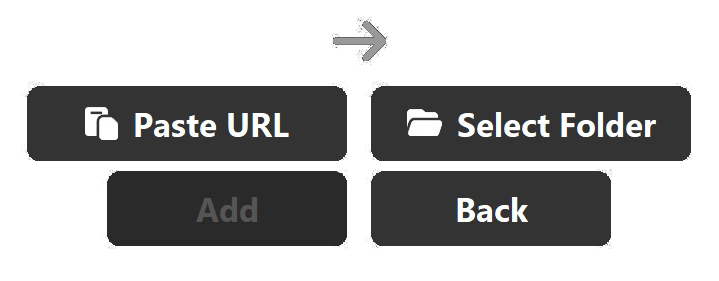 Use your playlist's share link button to copy and paste.Select a folder on your computer, or a folder on a plugged-in device like an SSD, phone, or MP3 player.
 -
Click Add - your playlist will appear in the Sync Library list
-
Click Sync to download all songs to your selected folder
Keeping it updated: When new music gets added to a playlist, just open the Sync Library and click Sync. It'll detect what's new and add only the missing songs.
Settings & Features
Cover Art
You can enable or disable Cover Art to display with your music.
Square Crop Cover Art Premium
Crops any rectangular cover art into a perfect square, so your whole collection looks consistent.
Already downloaded without it? No problem. Click Change under Download Location, select the folder you want to fix, then click Square Crop Folder.
Music Video Alternatives
Sometimes a playlist contains music videos, which can mean skits interrupting your listening. Enable this to automatically find audio-only alternatives.
Audio Quality
Choose from four quality settings:
Download Location
Choose where your music saves by clicking Change under Download Location.
Explicit Content New
Choose whether downloaded songs prefer the explicit or clean version when both exist for a track.
Find the Explicit Content dropdown in Settings. Choose Auto for the fastest downloads, Explicit to prefer uncensored versions, or Clean to prefer censored versions.
Silence Trimming New
Automatically trims silent dead air from the start and end of downloaded songs. Only trims files that actually need it, so your other songs are left untouched.
Turn on Silence Trimming in Settings to apply it to future downloads, or use it in the Edit Music window to clean up songs you've already downloaded.
Auto Volume Premium
Normalizes the volume across all songs so there are no jarring jumps between tracks.
Want to level a folder you've already downloaded? Go to Volume Adjuster, click Select Files, make your selection, and Make MP3s will handle the rest.
Stats After Downloads
Get a summary after each download including success rates, errors, and more.
Edit Music New Premium
A batch-editing tool for songs you've already downloaded. Apply cover art cropping, volume adjustment, and silence trimming to an entire folder or a specific selection of files, all at once.
Open Edit Music from the main window, choose a folder or select specific files, check which options to apply, then click Apply.
Updates
Make MP3s checks for updates automatically. You can manually check anytime by clicking Check for Updates.
Account Settings
You can view and manage your account on this website. Click the profile icon in the top right, sign in, then navigate to Account Settings.
Ready to unlock everything?
Unlimited downloads, Auto Volume, Sync Library, Square Crop Cover Art, and more.
Get Premium